Fix Builder.ai Deployment Errors in 2026: Full Recovery Guide
Understanding Builder.ai Deployment Failures
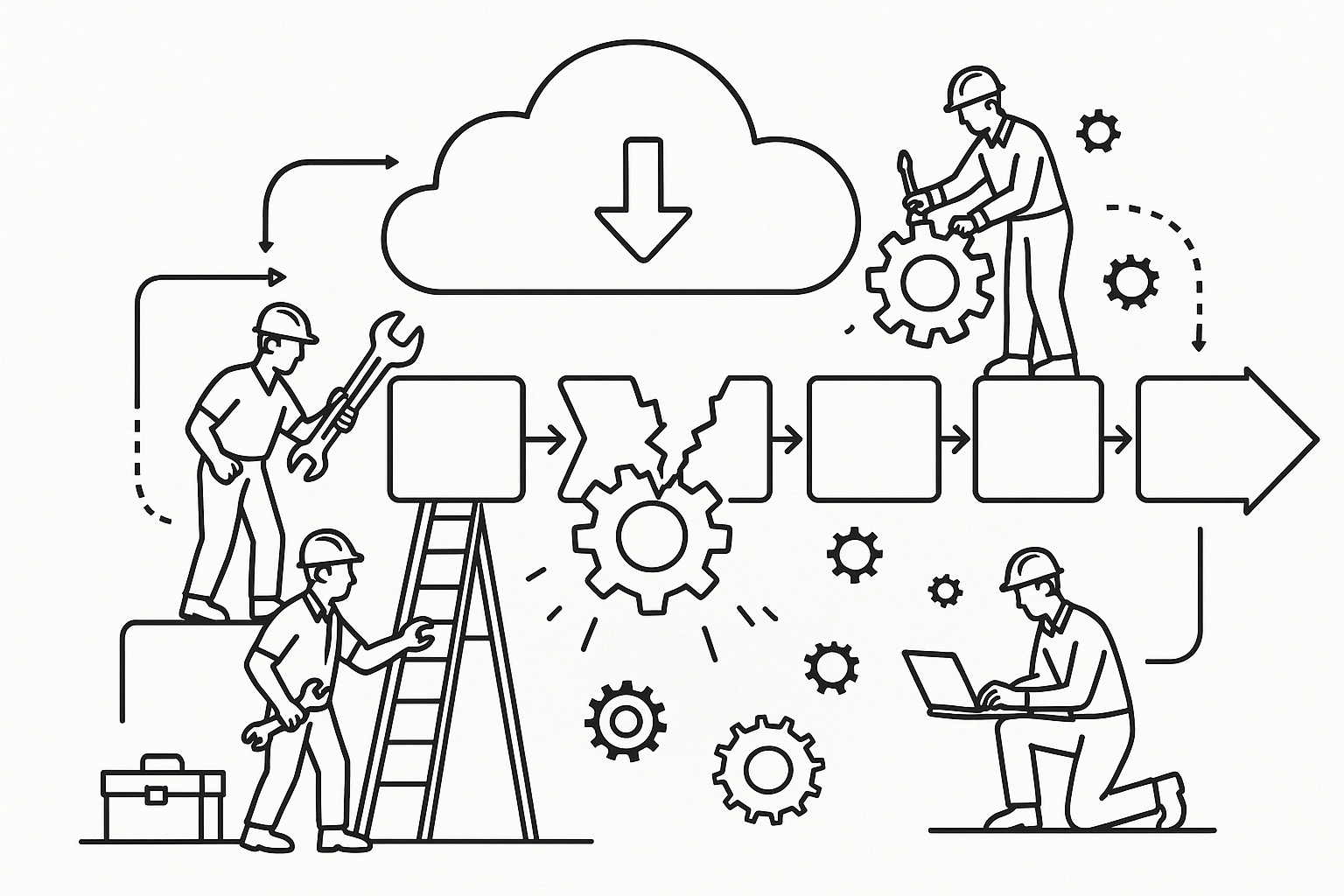
Deployment failures on Builder.ai often appear as simple timeout messages or generic 'Environment not ready' errors. But behind those vague alerts lie specific technical issues ranging from misconfigured environments to lost build containers. We’ve fixed over 40 Builder.ai apps where the deployment pipeline froze midway and left projects in a half-baked state.
Common Builder.ai Deployment Error Types
- Timeout errors: The deployment process exceeds Builder.ai’s internal time limit, often due to large asset uploads or build queues.
- Missing artifacts: Generated code or assets fail to copy into the build container, leaving the app incomplete.
- Pipeline crashes: The CI/CD configuration becomes corrupted within Builder.ai’s internal environment, halting all future builds.
Why They’re Worse in 2026
Since Builder.ai’s parent company SAIT entered insolvency in 2025, the platform’s cloud infrastructure has been largely static. Any remaining deployments now rely on outdated build images and unsupported APIs. That means new code pushes, especially those using modern frameworks like Next.js 15 or Flutter 4, are increasingly prone to failure. AppStuck has seen at least 20 apps in 2026 hit deployment errors after minor dependency upgrades.
How to Diagnose Builder.ai Deployment Errors
Builder.ai historically provided minimal debugging tools, but there are still steps you can take to identify the root cause before full migration. The key is to extract as much metadata as possible from your app’s dashboard and attached logs.
Step 1: Access Build Logs (If Available)
Navigate to your project’s Deployments section. If the logs are still accessible, copy them locally using your browser’s developer tools:
Right-click > Inspect > Network tab > Filter 'deploy' > Save response as .txt
If you see repeated entries like artifact not found or container exited with code 137, you’re dealing with a missing dependency or memory overrun.
Step 2: Check Environment Configuration
Confirm that your environment variables and linked services (like databases or APIs) are still connected. Many 2026 deployment errors stem from expired service tokens that Builder.ai can no longer refresh automatically.
Settings > Environment Variables > Verify each API key manually
Step 3: Rebuild Locally Using Exported Code
If your project still has an Export Code option, download the zip and attempt a local build. This will help determine whether your errors are Builder.ai-specific or code-related.
npm install && npm run build
Successful local builds indicate that Builder.ai’s environment-not your app-is the issue.
Recovering Your App After Deployment Failure
Once you confirm that the issue lies within Builder.ai’s infrastructure, the focus shifts to recovery. At AppStuck, we classify Builder.ai recoveries into three categories: partial, full, and migration-level.
| Recovery Type | When to Use | Typical Timeline |
|---|---|---|
| Partial Recovery | When code exports but deployment fails | 1–3 days |
| Full Recovery | When build artifacts or environments are lost | 3–7 days |
| Migration | When Builder.ai login or infrastructure is inaccessible | 5–14 days |
Partial Recovery: Fix and Redeploy Locally
If your export is intact, you can rebuild locally using Node.js or Flutter, depending on your project type. Recreate Builder.ai’s environment variables and update paths for assets. Then deploy to a modern host like Vercel, Render, or Firebase.
Example steps for a web app:
# Install dependencies
npm install
# Set environment variables
export NEXT_PUBLIC_API_URL=https://your-api-url
# Deploy manually
vercel --prod
Full Recovery: Reconstruct Missing Assets
For projects missing compiled assets, you’ll need to rebuild those using the raw source files. We’ve helped clients restore lost images, fonts, and database schemas by reverse-engineering Builder.ai’s export bundles. If you can access your project ID, AppStuck can often retrieve cached build resources from archived Builder.ai endpoints.
Migration: Moving Away from Builder.ai
When Builder.ai is completely inaccessible, migration is the only sustainable option. We’ve migrated dozens of apps from Builder.ai to open ecosystems like Bubble and FlutterFlow, retaining over 90% of functionality. Migration involves re-creating workflows, importing exported JSON schemas, and reconnecting APIs.
For full platform closure details, see our related post Builder.ai Login Not Working? The Platform Closed.
Preventing Future Deployment Failures
Even if you recover your app, the goal is to avoid another abrupt deployment failure. Builder.ai users often face recurring issues due to reliance on outdated build images.
Use External Version Control
Always connect your Builder.ai-generated code to a repository on GitHub or GitLab. That way, even if the Builder.ai environment vanishes, you retain version history and can rebuild anywhere.
git init

git add .

git commit -m "Initial commit from Builder.ai export"
Rebuild Deployment Pipeline Outside Builder.ai
Use CI/CD services like GitHub Actions or CircleCI to replace Builder.ai’s internal deployment pipeline. For instance, set up a workflow that triggers on pushes to the main branch and deploys to your chosen host.
name: Deploy

on: [push]

jobs:

  build:

    runs-on: ubuntu-latest

    steps:

      - uses: actions/checkout@v4

      - run: npm install

      - run: npm run build

      - run: vercel --prod
Monitor Dependencies and APIs
Many Builder.ai apps used older dependencies locked to specific Node.js or Flutter versions. Regularly update these locally to ensure future compatibility. Also, replace any Builder.ai-managed services with independent alternatives (Firebase, Supabase, AWS Lambda).
Advanced Troubleshooting: Deep Pipeline Debugging
For developers comfortable with backend debugging, you can inspect Builder.ai’s generated configuration files for deeper insights. These files often include clues about environment mismatches.
Inspect Docker or Build Config Files
Inside your export, look for files such as Dockerfile or builder.json. They define how Builder.ai built your app. Common misconfigurations include unsupported base images or missing dependency installs.
FROM node:16-alpine

RUN npm install --legacy-peer-deps
If you see a Node version lower than 18, update it locally and rebuild to match current runtime standards.
Compare Builder.ai vs Manual Builds
We’ve observed that Builder.ai’s builds often disable key optimizations or caching by default. Compare a manual build with the Builder.ai version to identify mismatches in dependencies or environment variables.
| Aspect | Builder.ai Default | Recommended for 2026 |
|---|---|---|
| Node.js Version | 14.x | 18.x+ |
| Dependency Install | npm ci | npm install with cache |
| Deployment Target | Internal Builder.ai cloud | Vercel, Netlify, Render |
Recreate Environment Variables Securely
Builder.ai used to store environment variables in a proprietary format. When migrating, map them manually to your new host. Keep sensitive keys in encrypted CI/CD secrets rather than hardcoding them.
echo "API_KEY=$API_KEY" >> .env
When to Call in AppStuck
DIY debugging reaches its limit when your Builder.ai dashboard no longer loads, your code export is incomplete, or you’re missing core assets like the database schema. At that point, continuing alone often means risking permanent data loss. AppStuck specializes in recovering Builder.ai apps-even those affected by the 2025 shutdown-and rebuilding them on stable platforms like FlutterFlow or custom Node.js environments. We can typically deliver a working recovery plan within 24 hours.
Visit AppStuck.com to start your Builder.ai recovery. Our engineers have rescued hundreds of apps exactly where Builder.ai left them stuck.
Stuck with Builder.ai?
AppStuck fixes, finishes and ships Builder.ai apps.
See how we fix Builder.ai apps