Lovable Troubleshooting Guide: Fix the 10 Most Common Errors (2026)


Before You Start: 60-Second Triage
Open your live app in incognito mode (not your regular browser) with DevTools open (F12 on Windows, Cmd+Option+I on Mac). The incognito window is important - cached state in your browser can hide or reproduce errors that don't exist in production. If you need hands-on help at any point, AppStuck specialises in Lovable app rescue and completion.
Check three panels in order:
- Console tab: Red messages tell you which file is failing and why. Note the full message before touching anything.
- Network tab → Fetch/XHR filter: Red rows show which API calls are failing. The status code (401, 403, 404, 500) tells you the category of problem.
- Application → Cookies: After logging in, look for a
sb-access-tokencookie. If it's missing on your production domain but present on the Lovable preview, OAuth redirect is misconfigured.
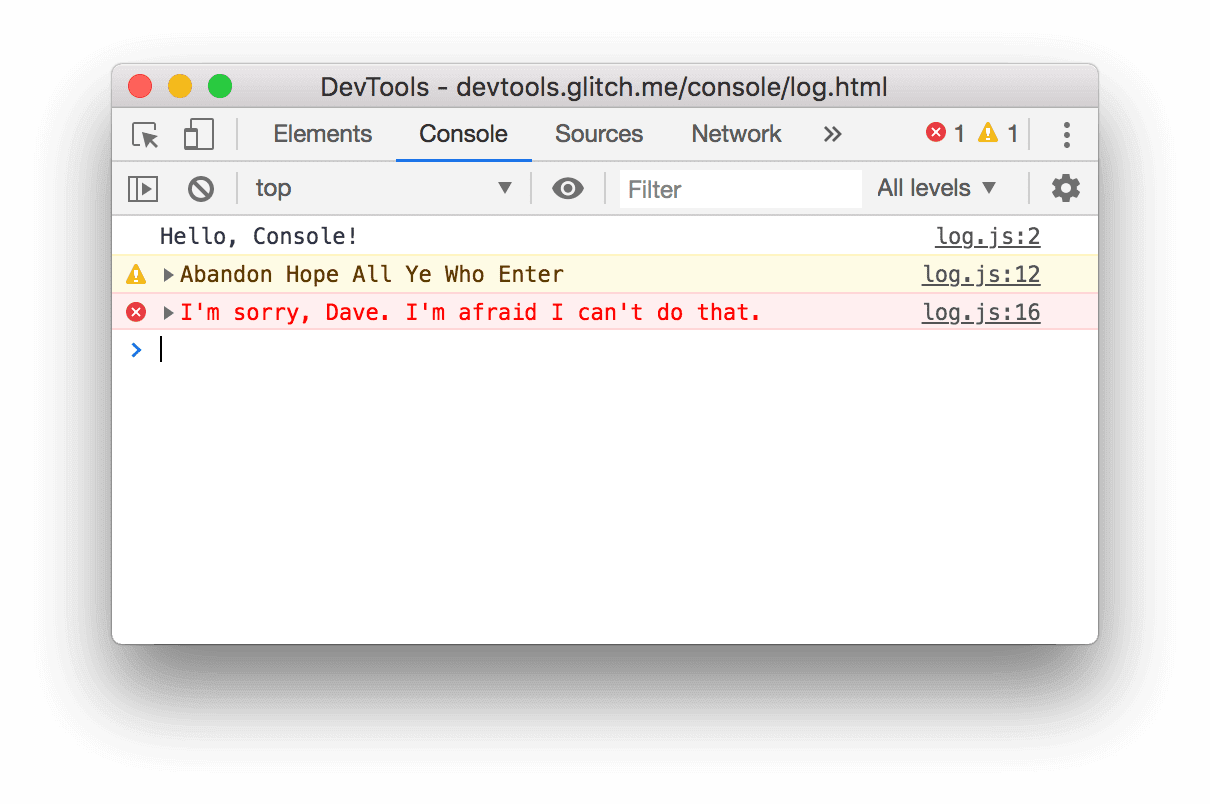
Quick diagnosis - which error is it?
- Blank or white screen → Error #1
- Works in Lovable preview, fails on live URL → Error #2
- Login redirects back to login page → Error #3
- Data doesn't appear / 403 in Network tab → Error #4
- Users can see each other's data → Error #5
- AI keeps trying the same fix, burning credits → Error #6
- Build fails after AI refactored something → Error #7
- Payment goes through but subscription stays on free → Error #8
- AI built something different from what you asked → Error #9
- App worked fast but is now slow → Error #10
1. Blank or White Screen After Changes
What it looks like: You prompt Lovable to add a feature or modify the UI. The preview goes white or blank. Hard refresh doesn't help. The app was working before this exact edit.
Why it happens: Two causes account for the majority of blank screens:
- Broken
vite.config.ts: Lovable's AI occasionally introduces syntax errors or invalid plugin configurations when it touches this file. Since Vite is the module bundler, a syntax error here prevents the entire app from loading - before any component renders. - Missing or undefined environment variable: If your app initialises a Supabase client or API connection at the module level (outside a function), an undefined key throws immediately. The result: blank page, no UI error, nothing obvious.

Step-by-step fix:
- Open DevTools → Console tab. Find the red error. Note the exact message and file name - don't skip this step.
- If the error mentions
vite.config.tsor a build configuration file, use this Lovable prompt:"Review vite.config.ts and fix any syntax errors or invalid plugin configurations. Do not change any functionality - only fix the syntax."
- If the error mentions
undefined,supabaseUrl is required, or any environment variable name:
Go to Lovable → Project Settings → Environment Variables. Confirm these keys are set:VITE_SUPABASE_URLVITE_SUPABASE_ANON_KEY- Any other keys your app uses (Stripe, OpenAI, etc.)
- If the console shows a component or import error, open Lovable's version history (clock icon) and revert to the last working commit. Then re-apply your change in a smaller, more specific prompt.
- If the console is empty but the screen is blank: check DevTools → Network tab for a failed JavaScript bundle load (
main.jsorindex.jsreturning 404).
- [ ] Console tab open - full error message noted
- [ ] Environment variables confirmed in Project Settings
- [ ] vite.config.ts reviewed if named in error
- [ ] Tested in incognito window (not regular browser)
- [ ] Version history checked - last working commit identified
When to call an expert: If the blank screen persists after checking the console and reverting, the issue is usually a deeper build misconfiguration - something the AI can't self-diagnose because it requires understanding the full build graph, not individual files in isolation.
2. App Works in Lovable Preview, Breaks on the Live URL
What it looks like: Everything works in Lovable's built-in preview. You publish. The live URL shows errors, blank sections, broken features. The app that worked five minutes ago is now broken - without changing anything.
Why it happens: Lovable's preview sandbox runs with elevated permissions and pre-configured defaults that don't exist in production. Research from Afterbuild Labs found that 85% of broken production Lovable apps fail for one of three reasons:
| Cause | % of cases | Symptom | Error in console |
|---|---|---|---|
| Missing environment variables | 55% | Blank page, API calls fail | supabaseUrl is required |
| RLS disabled (data exposed) | 30% | Users see each other's data | No error - silent failure |
| OAuth redirect misconfigured | 15% | Login loop, sessions disappear | No sb-access-token cookie |
Production triage (90 seconds):
- Open your live URL in incognito with DevTools.
- Console tab:
supabaseUrl is required= env vars missing.Failed to fetch= CORS issue. Red import errors = build configuration. - Network tab → Fetch/XHR: A
401or403on/rest/v1/requests = RLS issue. A CORS error badge = Edge Function missing headers. - Application → Cookies: Missing
sb-access-tokenafter login = OAuth redirect misconfigured.
Fix: mirror environment variables to your host
Go to your hosting provider (Netlify → Site Settings → Environment Variables, or Vercel → Settings → Environment Variables) and add every key from Lovable's Project Settings:
VITE_SUPABASE_URLVITE_SUPABASE_ANON_KEYVITE_STRIPE_PUBLISHABLE_KEY(if applicable)VITE_SITE_URL- set this to your actual production domain
Trigger a new deploy after adding variables - changes don't take effect until the build runs again.
- [ ] All environment variables added to hosting provider (Netlify/Vercel)
- [ ] New deploy triggered after adding variables
- [ ] Supabase redirect URLs updated to production domain (see Error #3)
- [ ] RLS tested with non-admin user account (see Error #5)
- [ ] Tested in incognito on live URL, not Lovable preview
When to call an expert: Preview-to-production failures require diagnosing auth, environment config, RLS, and CORS simultaneously. If you're hours away from a demo, investor meeting, or user launch, this is the highest-ROI time to get professional help.
3. Login Loop - Users Get Redirected Back to the Login Page
What it looks like: Users click Sign In. The login appears to succeed - then immediately redirects back to the login screen. Or the app hangs on a loading state and never proceeds. Works in Lovable preview, fails on the live domain.
Why it happens: Two systems must agree on your production domain: Supabase and your OAuth provider. During development, both are configured to point at the Lovable preview URL. When you go live, neither updates automatically.
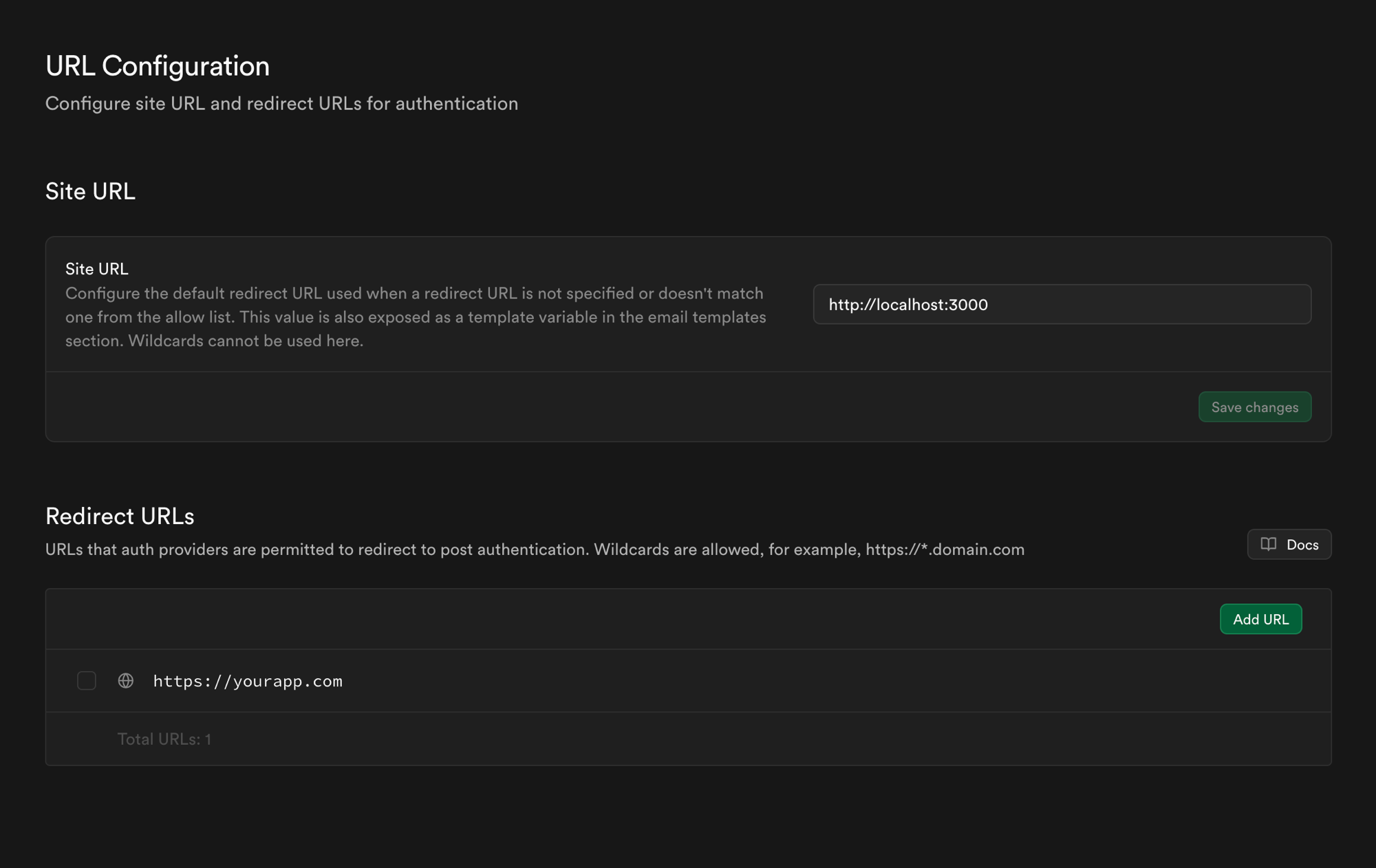
localhost:3000 from development. Any user who tries to log in on the real domain will be redirected back to the login page.Fix in Supabase (required for all projects):
- Open your Supabase dashboard → Authentication → URL Configuration.
- Set Site URL to your production domain:
https://yourdomain.com - Under Redirect URLs, add both:
https://yourdomain.com/**https://yourdomain.com
- Save.
Fix in Google Cloud Console (if using Google Sign-In):
- Go to APIs & Services → Credentials → your OAuth 2.0 client ID.
- Under Authorized JavaScript origins, add:
https://yourdomain.com - Under Authorized redirect URIs, add:
https://<your-project-ref>.supabase.co/auth/v1/callback - Save. Changes take 5-10 minutes to propagate.
Verify the fix:
Open an incognito window, log in on your production domain, then check DevTools → Application → Cookies. You should see an sb-access-token cookie set on your domain (not on *.lovable.app). If the cookie is present, the fix worked.
- [ ] Supabase Site URL set to production domain (not lovable preview URL)
- [ ] Supabase Redirect URLs include production domain
- [ ] Google OAuth Authorized JavaScript origins include production domain
- [ ] Google OAuth Authorized redirect URIs include Supabase callback URL
- [ ] Tested in fresh incognito window on live domain
- [ ]
sb-access-tokencookie visible in Application tab after login
When to call an expert: If the Supabase and OAuth config look correct but the loop persists, the issue is usually a race condition in the session management code - the router checks auth state before Supabase has loaded the session. This requires a code-level fix, not a settings change.
4. Data Not Saving or Supabase 403 Errors
What it looks like: You fill out a form and submit. You get a success message - but nothing appears in the database. Or you see a red row in DevTools → Network with status 403 Forbidden on a /rest/v1/ request.
Why it happens: Lovable's preview environment uses the Supabase service-role key, which bypasses all Row Level Security policies. Production uses the anon key, which respects RLS. If no policy exists that allows anon users to insert or read, the request is silently blocked or returns 403. The preview worked perfectly - the policies were never needed.
Diagnose in 2 minutes:
- Open DevTools → Network → Fetch/XHR.
- Trigger the failing action (submit form, click save button).
- Find the red row. Click it → Preview tab. The response body will contain one of:
"code": "42501"- RLS violation (the anon key doesn't have permission)"column X does not exist"- schema mismatch between code and database"relation X does not exist"- wrong table name
Fix RLS policy errors:
Go to Supabase → Table Editor → click your table → Policies tab. If the table has no policies listed, that's the problem. Use this Lovable prompt:
"The [table name] table is returning 403 errors when users try to [read/insert/update/delete]. Add RLS policies to allow authenticated users to [specify operation] on their own rows (where user_id = auth.uid()). Keep the existing table structure unchanged."
Fix schema mismatch errors:
In Supabase → Table Editor, look at the actual column names. Then prompt:
"The insert to [table name] is failing with 'column X does not exist'. The actual table columns are: [paste column names from Supabase]. Update the code to match this schema exactly."
- [ ] Network tab checked - 403 or error response noted
- [ ] RLS policies tab checked for the table (not empty)
- [ ] Policies tested by logging in as a regular user (not the project owner)
- [ ] Table schema in Supabase matches what the code inserts
- [ ] Tested after fix with a non-admin account
When to call an expert: RLS misconfigurations can create security vulnerabilities - policies that are too permissive let users read or modify each other's data. If your app handles any user-specific records, have an expert review the policies before launch.
5. Users Can See Each Other's Data (Silent Data Exposure)
What it looks like: User A logs in and can see User B's records, orders, or messages. Or there's no error at all - the app works, but all users are sharing the same data pool. This error has no crash, no 403, no console message. It just silently shows the wrong data.
Why this matters more than you think: A security audit of 50 deployed Lovable apps found 89% had Row Level Security completely disabled. This means any logged-in user could call the Supabase API directly (from browser DevTools) and read, edit, or delete every other user's data without needing to hack anything. In April 2026, a related vulnerability left thousands of Lovable projects with exposed source code and hardcoded database credentials for 48 days before it was patched.
The same audit found that 34% of apps were using the Supabase service-role key (which bypasses all security) inside the client-side JavaScript bundle - meaning anyone who opened DevTools could copy the key and gain admin-level database access.
How to test for data leakage right now:
- Create two separate test accounts using different email addresses.
- Log in as Account A in your regular browser. Create a record (order, message, profile entry).
- Open a separate incognito window. Log in as Account B.
- Navigate to the same section. If Account B can see Account A's record - you have a data isolation problem.
The correct RLS policy structure:
Every table storing user-specific data needs four policies, each using auth.uid():
| Policy name | Operation | Condition |
|---|---|---|
| Users read own rows | SELECT | (user_id = auth.uid()) |
| Users insert own rows | INSERT | (user_id = auth.uid()) |
| Users update own rows | UPDATE | (user_id = auth.uid()) |
| Users delete own rows | DELETE | (user_id = auth.uid()) |

Use this Lovable prompt to audit and fix all tables at once:
"Audit the RLS policies on all database tables. Every table that has a user_id column should have four policies scoped to auth.uid(): SELECT, INSERT, UPDATE, DELETE. Fix any tables where policies are missing or where authenticated users can see rows that don't belong to them. Also confirm the Supabase client is initialised with the anon key, not the service role key."
Check for exposed service role key:
In Lovable → Code view, search for service_role in your codebase. If you find it in any file that runs in the browser (anything in /src), it needs to be removed immediately and replaced with the anon key. The service role key should only ever be used in server-side code (Edge Functions, backend routes), never in client-side JavaScript.
- [ ] RLS enabled on every table with user data (check Supabase → Table Editor → Policies)
- [ ] Tested data isolation with two separate accounts in separate incognito windows
- [ ] No
service_rolekey in any client-side JavaScript file - [ ] Supabase client initialised with
VITE_SUPABASE_ANON_KEY, not service role - [ ] No API keys or secrets in
VITE_prefixed environment variables (these get bundled into the client)
When to call an expert: Data exposure is not a bug - it's a security vulnerability. If your app handles payments, health information, private messages, or any user-specific records, get a security review before launch. The cost of a review is far less than the cost of a data breach.
Is your Lovable app stuck at one of these errors?
AppStuck reviews Lovable codebases and gives you a clear fix plan, usually within 24 hours. We specialise in AI-generated apps that are 80% done but can't launch. See our Lovable services page or book a free assessment.
Get a free codebase assessment6. Credit Loop - AI Keeps Trying the Same Fix and Failing
What it looks like: You ask Lovable to fix an error. It makes a change that introduces a new error. You click "Try to Fix." It makes another change, different error. Another attempt, another error. Each iteration costs credits. After 8-10 attempts, the app is further from working than when you started.
Why it happens: Each fix attempt adds code without understanding the root cause. The model's context of what the code is supposed to do degrades with each iteration, making it progressively less likely to converge on a correct solution.
Break the loop immediately:
- Stop clicking "Try to Fix." Every attempt makes the context worse.
- Open Lovable's version history (clock icon, top-right). Identify the last commit where the app was working correctly.
- Revert to that commit.
- Switch to Plan Mode (toggle in the toolbar). Prompt:
"Before making any code changes: explain (1) what you will change, (2) which files you'll touch, (3) what the expected outcome is, and (4) what could go wrong. Wait for my approval before proceeding."
- Review the plan. If it makes sense, approve. If it doesn't, refine the plan before any code is written.
- Break your original request into the smallest possible unit. Instead of "add user profiles with avatar upload, bio, and settings," start with "add a page that shows the user's email address." Add one thing at a time.
- [ ] Maximum 3 "Try to Fix" attempts on the same error before reverting
- [ ] Always use Plan Mode before touching auth, database schema, or routing
- [ ] Revert before re-attempting - never build on top of broken state
- [ ] Break complex requests into single, verifiable steps
- [ ] Start a new chat thread after reverting (clears corrupted context)
When to call an expert: If you've been through multiple loop cycles and the codebase is now inconsistent, continued AI attempts almost always make it worse. A developer can assess what the code actually does in 1-2 hours and give you a clean path forward - often faster than another day in the loop.
7. Build Errors After AI Edits (Broken Imports, TypeScript Errors)
What it looks like: You ask Lovable to refactor a component, rename something, or reorganise files. The build fails with errors like Cannot find module './Button', Property does not exist on type, or SyntaxError: Unexpected token.
Why it happens: Lovable updates one file but misses the import references in all the other files that depend on it. In TypeScript projects, this also breaks type checking. On larger projects, the AI's context window doesn't cover every file that references the changed component.

Step-by-step fix:
- In Lovable, open Cloud → Logs. Note the exact error: file name + line number + error type.
- For import errors, prompt:
"The build is failing with: [paste exact error]. Find every file in the project that imports or references [component/function name] and update the import path or name to match the current file location."
- For TypeScript errors, prompt:
"Run a TypeScript check. List all type errors introduced by the recent changes and fix each one without changing any logic - only update the types."
- Fix errors one file at a time. Asking the AI to fix everything simultaneously reliably creates new errors.
- If errors keep cascading, revert to the last clean build and re-apply the change in a smaller, more isolated prompt.
- [ ] Build completes without errors (Cloud → Logs shows no red entries)
- [ ] Preview loads without a blank screen
- [ ] All pages that use the changed component still render correctly
- [ ] No TypeScript errors suppressed with
// @ts-ignore(these hide real problems)
When to call an expert: Large refactors - restructuring the auth system, reorganising the data layer, splitting a large component - consistently exceed what Lovable can do without introducing regressions. A developer will complete them faster and with fewer bugs than iterating with AI alone.
8. Stripe Payments Go Through But Subscriptions Don't Activate
What it looks like: A user completes checkout. Stripe charges the card. The transaction shows in your Stripe dashboard. But in the app, the user's account still shows as free tier - no access to paid features, no subscription created in the database.
Why it happens: Lovable wires up Stripe webhooks pointing at the Lovable preview URL during development. When you go to production, those webhooks still point to the old URL. Stripe sends the payment confirmation event - but nothing in your production app receives it, so the subscription never activates.
Diagnose in Stripe:
- Go to Stripe Dashboard → Developers → Webhooks.
- Click your webhook endpoint → Recent Deliveries tab.
- Look for failed deliveries (red). Click one to see the response:
404 Not Found: The endpoint URL points to the Lovable preview (*.lovable.app) or doesn't exist in productionNo signatures found matching expected signature: The webhook signing secret doesn't match production- Zero deliveries: The webhook is in test mode only; you need a separate live-mode endpoint
Fix:
- In Stripe Dashboard → Developers → Webhooks, click "Add endpoint."
- Set the URL to your production endpoint:
https://yourdomain.com/api/webhooks/stripe(or wherever your handler is). - Select the events your app handles (at minimum:
checkout.session.completed,customer.subscription.updated,customer.subscription.deleted). - Copy the new Signing Secret (starts with
whsec_live_). - In your hosting provider's environment variables, update:
STRIPE_WEBHOOK_SECRET=whsec_live_... - Trigger a new deploy. Then use Stripe's "Send test webhook" to verify the handler receives and processes the event.
- [ ] Live-mode webhook created (separate from test-mode webhook)
- [ ] Webhook endpoint URL points to production domain, not *.lovable.app
- [ ]
STRIPE_WEBHOOK_SECRETupdated with live signing secret (whsec_live_...) - [ ] Stripe publishable and secret keys are live keys, not test keys (
sk_live_..., notsk_test_...) - [ ] New deploy triggered after updating variables
- [ ] Test checkout completed and subscription activated in app
When to call an expert: Stripe integration bugs directly affect revenue. If real users are paying but not getting access, every day of delay has a measurable cost. This is worth resolving quickly.
9. AI Built the Wrong Feature Despite Detailed Instructions
What it looks like: You gave Lovable a detailed prompt. It built something - but it's not what you asked for. Wrong layout, missing functionality, behaviour that partially works but misses the core requirement. Re-prompting gets closer but never quite right, or fixes one thing while breaking another.
Why it happens: Research shows the AI misinterprets about 35% of complex feature prompts. Lovable fills in specification gaps with common patterns from training data. If your requirement is domain-specific or deviates from standard patterns, the AI defaults to what it's seen most often - not what you need.
Before re-attempting the feature:
- First, make the AI surface its misunderstanding:
The gap between what it describes and what you wanted is exactly what to clarify next."Before making any changes: describe what you built, how it works step-by-step, and what assumptions you made that weren't explicitly in my instructions."
- Write the corrected prompt using this structure:
- Context: "The current version does X."
- Problem: "This is wrong because Y."
- Required change: "Change only Z to do W. Step by step: [exact behavior]."
- Constraint: "Do not change [other areas]."
- For visual issues, upload a screenshot and circle the exact problem element. Describe both what it looks like now and what you want.
| Instead of this | Use this |
|---|---|
| "Add a login feature" | "Add a login page with email/password fields only. On submit, authenticate via Supabase. On success, redirect to /dashboard. On error, show the error message below the form. Do not add Google login or any social auth." |
| "Fix the button" | "The Submit button on the contact form (/contact) does nothing when clicked. It should call submitForm() and show a loading spinner while awaiting. Do not change the button's appearance or any other form element." |
| "Make it look better" | "The card on the pricing page has inconsistent padding. Change only the padding to 24px on all sides. Keep existing colours, fonts, border, and all other styles." |
When to call an expert: If a feature has been re-attempted 3+ times without converging, the AI's context is contaminated by accumulated incorrect attempts. A developer implements the correct version directly in the codebase - no prompting overhead, no regressions from context drift.
10. App Gets Slower as the Project Grows
What it looks like: The app was fast when you started. After weeks of adding features, pages now take 3-5+ seconds to load, interactions feel laggy, and the Lovable preview takes a long time to reflect each change. Users are starting to notice.
Why it happens: Lovable-generated code accumulates performance debt iteratively. Common patterns: components re-rendering on every state change, unused imports inflating the JavaScript bundle, database queries fetching all rows when a page only displays 10, and missing loading states that make the app feel frozen while data loads.
Performance triage:
- Open DevTools → Network tab. Reload the page and look at:
- JavaScript bundle size: Click on
index.jsor the main JS file. If it's over 500KB (uncompressed), the bundle needs optimisation. - Number of API requests: If the page load triggers 10+ separate
/rest/v1/calls, they should be consolidated. - Slow requests: Any API call taking over 500ms is a bottleneck. Click it to see which table and query is responsible.
- JavaScript bundle size: Click on
- Run PageSpeed Insights on your live URL. A mobile score below 50 means performance is likely affecting your search ranking.
Fixes by category:
Unnecessary re-renders:
"Audit all components for unnecessary re-renders. Add React.memo to components that receive the same props but re-render frequently. Add useCallback to event handler functions passed as props to child components."
Large JavaScript bundle:
"Find and remove unused imports and dependencies across the codebase. For large libraries (chart libraries, date pickers, icon sets), switch to tree-shaking imports so only the parts the app actually uses are included in the bundle."
Slow or excessive database queries:
"The [page name] page makes [N] separate Supabase queries on load. Consolidate these into fewer queries using joins or Supabase views. Add pagination - limit to 20 rows per page and load more on scroll instead of fetching all rows."
| Metric | Good | Needs attention | Critical |
|---|---|---|---|
| Mobile PageSpeed score | 75+ | 50–74 | <50 |
| Largest Contentful Paint (LCP) | <2.5s | 2.5–4s | >4s |
| JS bundle size (uncompressed) | <200KB | 200–500KB | >500KB |
| API calls on page load | 1–3 | 4–8 | >8 |
When to call an expert: Performance optimisation on AI-generated code requires understanding the complete component tree, data flow, and bundle composition at once. A developer can audit these in 2-4 hours and give you a prioritised fix list sorted by impact.
When Self-Debugging Stops Making Sense
Most of the errors above are fixable with the steps provided. Some situations signal that continued self-debugging has diminishing returns:
- The same error returns after multiple fix attempts - the root cause hasn't been addressed
- Real-time features are failing (video/audio sync, live collaboration, WebRTC) - these require specialist knowledge outside what AI tools reliably generate
- Security concerns (HIPAA, GDPR, financial data) - a recent audit found 89% of Lovable apps had security misconfigurations; professional review before launch is not optional here
- Performance is degrading under real users - AI-generated code is optimised for "works," not for "works at scale"
- The launch has a deadline - if delay has a cost (investor demo, paying customers waiting, product launch), debugging time has a direct financial impact
- The time and credits spent already exceed what help costs - a 4-hour developer review often costs less than 2 days of credit loops
Still stuck after trying these fixes?
AppStuck specialises in rescuing and completing Lovable projects. We've debugged every error on this list - and the rare ones that don't make it - across 300+ production codebases. We'll tell you honestly what your project needs and what it costs, before any work starts.
Book a free 30-minute assessmentRelated posts





Need Help with Your AI Project?
If you're dealing with a stuck AI-generated project, we're here to help. Get your free consultation today.
Get Free Consultation