Webflow Ecommerce Checkout Failed: 2026 Fix Guide

Confirm What Is Actually Failing
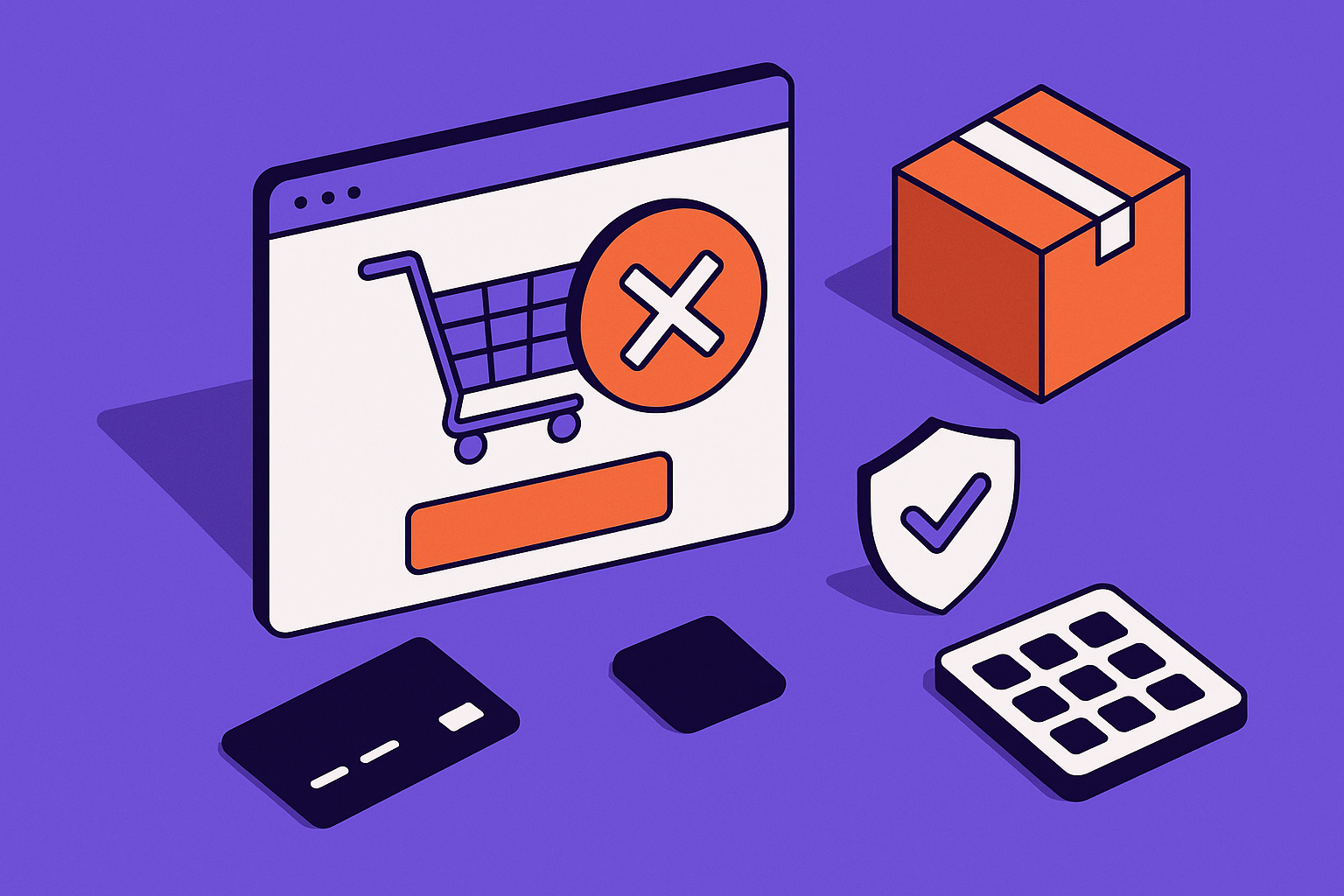
A Webflow ecommerce checkout problem can happen in three different places: the cart, the checkout form, or the payment authorization. Treat those as separate systems. If you only click around the published site and see a generic message, you will not know whether Webflow rejected the order, Stripe rejected the payment, or a shipping and tax rule made the order invalid.
Start on the published domain, not the Designer preview. Open the store in an incognito window with DevTools open. Use the Console tab for JavaScript errors, the Network tab filtered to Fetch/XHR for failed requests, and the Application tab for storage or cookie issues. Add the same product your customer reported, enter the same shipping country and postal code, and continue until the exact failure appears.
Map the symptom before changing settings
If the cart opens but checkout will not load, look for front-end JavaScript conflicts, custom code, or a broken cart element. If the checkout page loads but rejects customer details, focus on address, shipping, tax, and required fields. If the payment step fails after card entry, focus on Stripe account state, live mode, payment methods, 3D Secure, and Webflow's Ecommerce gateway connection.
| Symptom | Likely area | First place to check |
|---|---|---|
| Cart opens, checkout button does nothing | Cart component or custom code | Console errors on the published site |
| Customer info error before card entry | Shipping, address, tax, or required fields | Webflow Ecommerce settings and Network response |
| Payment fails after authentication | Stripe or payment method support | Stripe Payments log and Webflow payment settings |
| Works in test, fails live | Live keys, account verification, or live payment rules | Stripe account status and Webflow gateway mode |
Capture the evidence
Before you edit anything, save screenshots of the checkout page, the visible error, the Webflow Ecommerce settings that apply to the order, and the Stripe payment attempt if one exists. In Stripe, open the attempted payment, PaymentIntent, or event related to the failed order. Webflow may show a friendly checkout message while Stripe keeps the more useful decline or authentication reason.
"I am debugging a Webflow ecommerce checkout failure. Here is the visible error: [paste error]. Here are the Console errors, failed Network responses, Webflow Ecommerce settings, and Stripe payment log. Identify whether the failure is caused by Webflow checkout configuration, Stripe account state, shipping, tax, or payment authentication."
When to call an expert: if you cannot reproduce the same failure twice, or if different customers fail at different checkout steps, stop changing settings randomly. You need a controlled checkout trace before more edits create new variables.
Fix Stripe Connection, Live Mode, and Account Status
Many Webflow checkout failures come from a store that appears connected to Stripe but is not ready to charge live customers. The connection can be present while the Stripe account is still restricted, the store is still using a test workflow, or the payment method the buyer selected is not actually supported through Webflow Ecommerce.
In Webflow, open the site's Ecommerce settings and confirm the payment provider connection. Then open Stripe in a separate tab and check the account status, verification requirements, business details, bank account, and enabled payment methods. A green-looking integration is not enough. Stripe can accept the connection but block charges until the account requirements are complete.
Separate test behavior from live behavior
Test cards and real cards do not exercise the same risk, authentication, and payment method rules. A checkout that succeeds with a test card can fail when a real customer uses a card that requires Strong Customer Authentication, a wallet, or a local payment method. Confirm that the Webflow site is published with the intended payment mode and that you are not testing with stale browser storage from an older checkout session.
- Publish the site after payment setting changes. Do not rely on the Designer preview.
- Open Stripe and confirm there are no outstanding account verification requirements.
- Check whether the failed attempt created a
PaymentIntent,Charge, or event in Stripe. - If Stripe shows no attempt, the failure likely happened before payment reached Stripe.
- If Stripe shows a failed attempt, read the decline, authentication, or payment method reason there.
- Retest in incognito after clearing cart state and cookies for the domain.
Watch for product price and currency issues
Old forum cases around Webflow and Stripe include generic checkout errors caused by product and payment configuration rather than broken code. Check that the product has a valid price, the currency matches the store's intended Stripe setup, and discounts do not reduce the order into an invalid amount for the payment method. Also confirm that all required product variants have prices and SKUs where your workflow expects them.
Do not assume the checkout error text will name the real issue. A customer-facing message such as There was an error processing your customer info. Please try again, or contact us if you continue to have problems. can be triggered before the card is charged, even when the founder describes the situation as Stripe not working.
Stripe readiness checklist
- Stripe account verification has no pending business, owner, or bank requirements.
- Webflow Ecommerce payment provider is connected to the intended Stripe account.
- The published site has been republished after payment setting changes.
- The failed order creates a Stripe event, or you have confirmed it never reaches Stripe.
- Products, variants, currency, and discounts produce a valid charge amount.
If you need a second set of engineering eyes on a revenue-blocking checkout, ask AppStuck to review the failure path before you rebuild the store or swap payment providers.
When to call an expert: if Webflow says Stripe is connected, Stripe shows no usable payment attempt, and customers still fail on the published checkout, the integration boundary needs debugging. That is usually faster with someone who can inspect both sides together.
Repair Shipping, Tax, and Non-Shipping Product Rules
Shipping and tax settings are easy to underestimate because they feel like business configuration, not checkout engineering. In Webflow Ecommerce, they can decide whether checkout is valid at all. If the customer's country, state, postal code, cart contents, or product type does not match a configured rule, checkout may fail before payment authorization.
Start with the exact cart contents that failed. A store selling physical products, digital products, services, and subscriptions can accidentally mix checkout assumptions. A product that should not require shipping might still be treated like a shippable item. A physical product might have no shipping method for the customer's region. A taxable order might lack enough location data to calculate the final total.
Shipping zones and methods
Open the Webflow Ecommerce shipping settings and verify the destination country, region, and postal code used in your test. Confirm that at least one shipping method applies to the cart total and product weight or quantity. If you use free shipping thresholds, make sure the customer's discounted subtotal still qualifies. If you use region-specific rates, test both an allowed and a disallowed address so you can see the difference.
Orders that do not require shipping
For digital goods, downloads, services, or local pickup workflows, confirm that product and checkout settings match a non-shipping order. A mismatch here can produce a confusing customer info error because the checkout is asking for address data the order should not need, or it is trying to calculate a shipping and tax result that does not apply.
| Store type | Setting to verify | Failure pattern |
|---|---|---|
| Physical products | Shipping zone and rate cover the buyer address | No valid delivery option at checkout |
| Digital products | Order does not require shipping | Checkout asks for irrelevant shipping data |
| Mixed cart | Every item type is compatible with one checkout flow | Customer info or tax calculation fails |
| Discounted order | Shipping threshold still applies after discount | Expected rate disappears from checkout |
Tax calculation failures
Tax can break checkout when the store expects a jurisdiction-specific calculation but the address, product tax category, or payment provider workflow does not support the order. If a checkout fails only for certain states, provinces, or countries, test tax rules before touching Stripe. Look for failed Network responses around checkout update calls after the address is entered.
Shipping and tax checklist
- The failing customer address is inside an active shipping zone.
- At least one shipping method applies after discounts and cart changes.
- Digital or service products are not accidentally requiring shipping.
- Tax settings match the regions where the store is accepting orders.
- The published checkout has been retested with the exact failed cart contents.
When to call an expert: if checkout fails only for certain carts or regions, the problem is probably rule interaction, not one bad toggle. Get help when shipping, discount, tax, and product type rules overlap in ways you cannot reason through confidently.
Handle 3D Secure, Blocked Methods, and Local Payments
A buyer can reach the final payment step and still fail because the selected payment method is not supported by the Webflow checkout flow, requires authentication that loops, or is blocked by Stripe risk controls. This is where Webflow ecommerce checkout debugging becomes frustrating: the storefront may show a short error while the useful detail lives in Stripe.
For card payments that require 3D Secure, watch the full redirect or modal flow. The customer may authenticate with their bank and then land back on checkout with a message like Failed to authenticate payment with current payment method on file. That can be caused by a failed authentication, a blocked card, a browser issue, or a payment method flow that Webflow's checkout is not completing as expected.
Confirm what Webflow actually supports
Stripe can support many payment methods that Webflow Ecommerce may not expose through its native checkout. If a buyer wants Bancontact, iDEAL, or another local method, do not assume enabling it in Stripe makes it available in Webflow. Check the payment methods offered on the live checkout page, then compare them with what is enabled in Stripe for the account.
If Stripe support says Webflow may be blocking a payment method, translate that into a testable question: does Webflow's native checkout present that method, create a compatible payment object, and complete the return flow? If not, you may need a different Stripe integration pattern such as Stripe Payment Links, a Buy Button, or a custom checkout outside native Webflow Ecommerce.
Diagnose authentication loops
- Reproduce the payment in incognito with pop-up blockers and privacy extensions disabled.
- Check Stripe for the payment attempt and open the authentication or decline details.
- Test with a different real card from a different issuer if appropriate.
- Confirm the checkout return URL uses the correct published domain.
- Disable custom scripts that might interfere with checkout redirects, then republish and retest.
- If local payment methods are required, verify they appear in Webflow checkout before promising them to customers.
"Review this Webflow and Stripe checkout issue. The customer reaches 3D Secure, then returns to this error: [paste error]. Based on these Stripe event details and browser logs, tell me whether the issue is authentication failure, unsupported payment method, blocked card, or a return URL problem."
Payment method checklist
- The payment method shown to customers is supported by Webflow's native checkout.
- Stripe shows a payment attempt with a clear authentication or decline status.
- The checkout return happens on the published production domain.
- Browser extensions and blocked third-party flows have been ruled out.
- Local payment requirements have been tested end to end, not only enabled in Stripe.
When to call an expert: if your business depends on a payment method Webflow checkout does not reliably support, stop patching around it. The right answer may be a different Stripe architecture, not another Webflow setting.
Fix Customer Info and Generic Checkout Errors
The hardest checkout failures are the vague ones. A customer enters their name, email, address, and payment details, then sees a message that says there was an error processing customer information. That message is not a diagnosis. It is a checkout boundary saying Webflow could not turn the submitted data into a valid order or payment step.
Start by narrowing the field that triggers the failure. Enter the customer's address exactly as reported, then change only one variable at a time: country, state, postal code, email, product, quantity, discount code, and shipping method. Keep DevTools open. The failed Network response may include a status code or response body that points to address validation, shipping, tax, or payment setup.
Required fields and custom checkout styling
Webflow lets you customize the shopping cart and checkout experience, but styling can hide problems. A required field can be visually unclear, an error message can be too low on the page, or custom CSS can make a disabled state look clickable. Inspect the checkout form as a customer would use it on mobile and desktop. Make sure validation messages are visible, form labels are readable, and the checkout button clearly shows loading and disabled states.
Custom code conflicts
Custom scripts added for analytics, pixels, pop-ups, chat widgets, cookie banners, or conversion tracking can interfere with checkout behavior. Do not remove everything permanently on a live store without a plan. Instead, duplicate the site or test during a quiet window, disable nonessential scripts, publish, and retest the same checkout path. If the error disappears, re-enable scripts one at a time.
- Test the checkout with no discount code, one simple product, and a supported address.
- If that works, add the original discount code and retest.
- If that works, add the original product mix and quantities.
- If that works, add tracking and custom scripts back one at a time.
- Record the first change that reintroduces the error.
"Act as a checkout debugger. Given this Webflow checkout error [paste error], these failed Network responses, and these checkout settings, create a step-by-step isolation plan that changes only one variable per test."
When to call an expert: if a generic customer info error survives a simple product, clean address, no discount, and disabled custom scripts, the issue is likely buried in store configuration or the gateway handoff. That is where structured debugging beats more trial and error.
Use a Safe Checkout Recovery Checklist
When checkout is broken, the pressure to fix it can cause risky edits. Founders change Stripe settings, shipping rates, tax rules, custom code, product data, and checkout design in one session. Then the error changes, but nobody knows which edit mattered. Use a recovery process that protects the live store and gives you a clear rollback path.
First, write down the current state. Export or screenshot payment settings, shipping zones, tax setup, product data for affected items, discounts, and custom code locations. If the store is taking any orders, avoid broad changes during peak traffic. If checkout is fully blocked, put a visible support path on the site while you repair it, such as a contact form or manual order instruction.
Change one layer at a time
Work from the outside in. Confirm the published checkout path, then Webflow settings, then Stripe, then custom scripts, then alternate integration options. Do not start with a rebuild. Many Webflow shop issues are resolved by aligning settings, not redesigning the cart.
| Recovery step | Safe action | Rollback |
|---|---|---|
| Published site test | Reproduce in incognito with DevTools | No site change required |
| Webflow settings | Edit one payment, shipping, or tax setting | Restore documented setting |
| Stripe setting | Resolve account or method issue | Disable the changed payment method |
| Custom code | Temporarily remove nonessential scripts | Restore saved embed or site code |
| Architecture | Consider Payment Links or custom checkout | Keep native checkout until replacement is tested |
Retest the money path
A checkout fix is not complete when the error disappears. Confirm that a real order can be placed, the customer receives the expected confirmation, the order appears in Webflow, the payment appears in Stripe, taxes and shipping look correct, and fulfillment receives the data it needs. Then test one failed scenario again to make sure it now behaves correctly.
Final recovery checklist
- A simple product checkout succeeds on the published domain.
- The original failed product and address now complete or show a clear valid message.
- The order appears in Webflow with the correct customer and fulfillment details.
- The payment appears in Stripe with the expected amount, currency, and status.
- Shipping, tax, discount, and confirmation emails match the business rules.
- Any temporary script removals have been documented and intentionally restored or removed.
When to call an expert: if the store is losing revenue and you have already touched multiple settings without a written test log, pause. An expert can reconstruct the failure path, reduce the number of variables, and decide whether Webflow native Ecommerce is still the right checkout layer.
When to Call in AppStuck
Webflow Ecommerce is a good fit for many stores, but its checkout can become a black box when Webflow, Stripe, shipping, taxes, scripts, and payment authentication all meet at the same step. The practical question is not whether the platform is bad. The question is whether your current checkout architecture matches what you sell and how your customers pay.
Call for help when the same customer-facing error keeps returning, Stripe and Webflow appear to disagree, required payment methods are not available in native checkout, or regional shipping and tax rules make the order flow unpredictable. Also call when you are considering a workaround such as Stripe Payment Links, a custom checkout, or a partial migration and need to avoid breaking fulfillment, analytics, or order management.
AppStuck specializes in rescuing and completing Webflow projects where the storefront is close but the checkout is blocking revenue. We will tell you honestly whether the fix belongs in Webflow settings, Stripe configuration, custom code, or a different checkout path before any work starts.
Still stuck after trying these fixes?
AppStuck can trace your Webflow checkout from cart to Stripe, isolate the failing layer, and repair the store without guessing through live settings.
Book a free 30-minute assessmentRelated posts



Need Help with Your AI Project?
If you're dealing with a stuck AI-generated project, we're here to help. Get your free consultation today.
Get Free Consultation